
The Smart Out-of-Office Reply That Doesn't Lose You Money
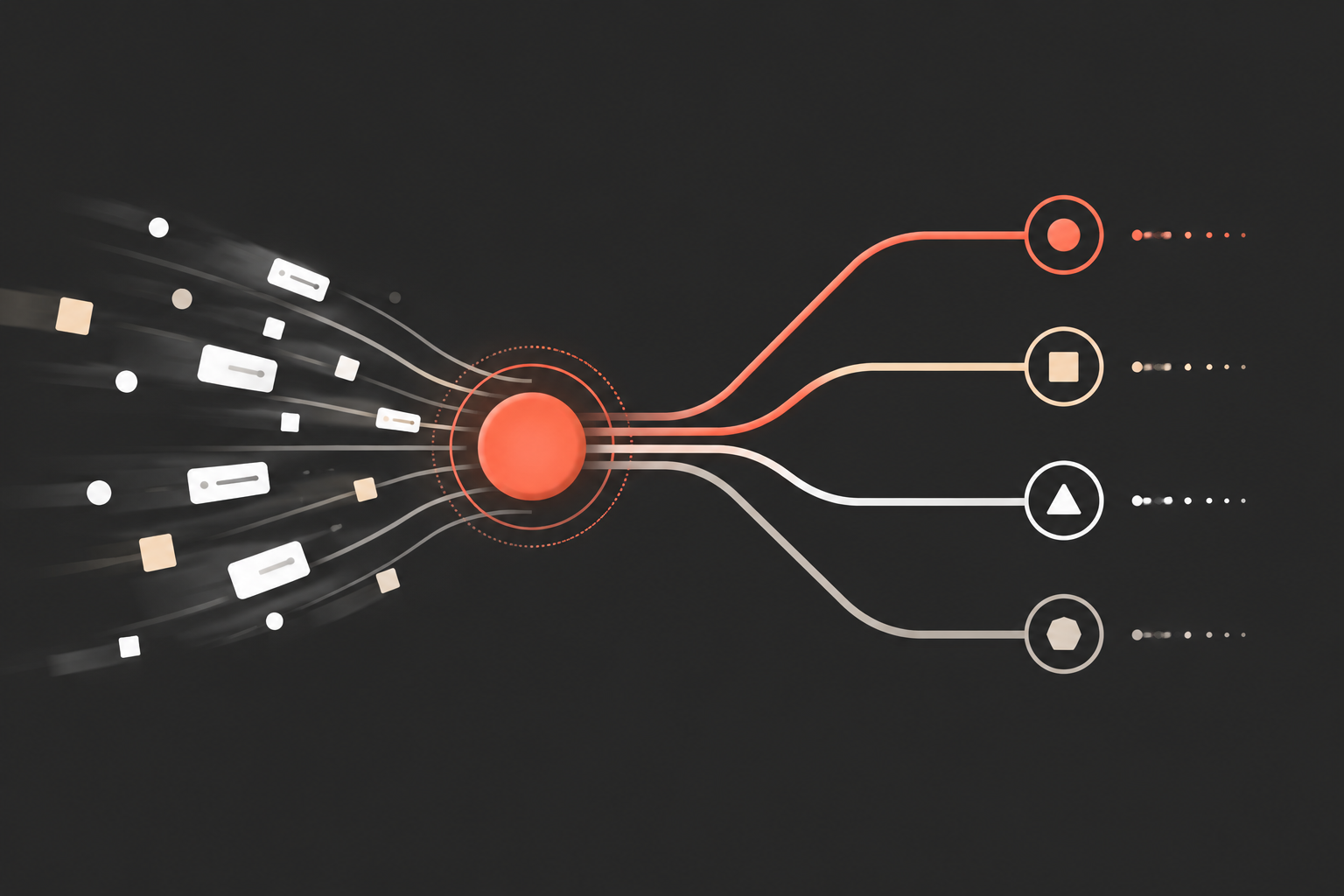
Your out-of-office reply tells people you're gone and nothing else. Build an AI auto-responder that reads, classifies, and responds to every email while you're away.
Use AI to triage, reply, and route email while you're away
The Problem
You know exactly how this goes. You block off a week. Maybe it's a family trip, maybe it's a conference, maybe you desperately need to not think about work for a few days. You set up your out-of-office reply: "Thanks for your email. I'm currently out of the office and will return on Monday the 16th. I'll respond to your message when I'm back."
It's professional, polite, and completely useless.
During those five days, a potential client emails about a $14,000 project. They get your auto-reply. They need someone now, not next Monday. By Thursday, they've signed with your competitor. Your best referral source mentions it casually when you get back: "Yeah, I sent that guy your way, but I think he went with someone else." You never even knew the opportunity existed.
That's the real cost of a standard out-of-office message. It tells people you're gone. It tells them nothing else. It doesn't offer an alternative contact for urgent issues or point people to resources that might answer their question. A colleague could keep a hot lead warm for 48 hours, but nobody knows to reach them.
For most small business owners, the damage piles up quietly. Leads cool off. An existing client waits three days for something your FAQ page could've handled in thirty seconds, while a vendor reschedules because nobody told them who to contact. You come back to 200 emails and spend Monday triaging instead of working. Research from multiple firms found that 88–89% of customers expect a business email response within an hour. Your auto-reply told them to wait five days.
The out-of-office reply hasn't evolved in twenty years. Response time expectations have changed completely.
What Changed
You can now build an AI-powered auto-responder that does more than acknowledge your absence. It reads incoming emails and classifies them by urgency and type. Leads get a warm reply with your booking link. Urgent items get forwarded to a human. Everything else gets a simple acknowledgment with a realistic timeline.
The setup connects your email to an automation platform like Zapier or Make.com, which passes each new message through an AI model (Claude or ChatGPT). The AI reads what's being said and decides the category: new lead, existing client request, vendor question, genuinely urgent, or noise. Based on that read, it takes the right action automatically.
You can get the core system running in 30 to 45 minutes. Define your email categories, connect your inbox to the automation platform, write a classification prompt, and build response paths for each category. One two-week test processed roughly 30 emails per day. Without the system, previous time away meant returning to 400+ unread messages and losing most of the first day back to sorting. With AI triage running, 43 emails needed personal attention on return, and three new client meetings were already on the calendar.
Setup Instructions
⏱️ You can get this done in 30 to 45 minutes. A basic version runs in 20.
Step 1: Define Your Email Categories
Before you touch any tools, sit down for ten minutes and write out the types of emails you receive. This is the foundation the AI uses to make decisions, so be specific. Most small businesses end up with four to six categories:
New leads or inquiries: people reaching out for the first time about your services.
Existing client requests: current customers asking questions or needing support.
Vendor or partner communication: suppliers or collaborators with non-urgent business.
Urgent items: anything that needs same-day human attention. Define what "urgent" means for your business. For a property manager, it might be a water leak. For a law firm, a filing deadline.
Everything else: newsletters and automated notifications. These get a standard auto-reply or no reply at all.
Write these categories down. You'll paste them directly into your AI prompt in Step 4.
Step 2: Choose Your Automation Platform
You need a tool that watches your inbox and triggers actions when new emails arrive.
Zapier is the easier option. The Gmail and Microsoft Outlook triggers are reliable, the interface is drag-and-drop, and it has built-in actions for both Anthropic (Claude) and OpenAI (ChatGPT). No custom code required.
Make.com offers more flexibility and a more generous free tier, but the learning curve is steeper. If you've never used an automation platform, start with Zapier. You can always migrate later.
This walkthrough uses Zapier. The logic is identical on Make.com; only the interface differs.
Step 3: Connect Your Email
Head to zapier.com and click Create. Pick Gmail (or Microsoft Outlook) as your trigger app, then choose "New Email" as the trigger event. Zapier walks you through a one-time permission grant so it can read incoming messages.
Now add a filter step right after the trigger. Without it, the automation will auto-reply to your own teammates and the colleague you've been emailing all morning. That gets weird fast.
Set the filter to skip any email from your own domain and skip senders you've tagged as internal team. Add a second filter that ignores calendar invites and automated alerts. These don't need a thoughtful AI reply. They need to be left alone.
Test the trigger before moving on. Send yourself an email from a personal account and confirm Zapier picks it up. If it doesn't, you've got a permission issue or a filter that's too aggressive. Fix it now, not later.
Step 4: Add the AI Classification Step
Click the plus icon to add a new step. Search for Anthropic (Claude) or ChatGPT, whichever you have an account with. Both work. Pick "Send Message" (Claude) or "Conversation" (ChatGPT) as the action. You'll connect your account by pasting in an API key from anthropic.com or platform.openai.com.
This is where the brain of your setup lives. Spend more than ten minutes on this prompt. It decides how your absence gets handled.
Map the email subject and body from the Gmail trigger into the prompt fields, then paste in something like the example below. Replace the bracketed parts with your real details before saving.
📝 SAMPLE PROMPT
You're an email assistant for [Your Business Name]. I'm out of the office until [return date]. Read the email below and do two things.
First, classify it as exactly one of these categories: NEW_LEAD, CLIENT_REQUEST, VENDOR, URGENT, or OTHER. Use URGENT only if the email mentions a deadline within 48 hours, an active emergency, or words like "urgent," "asap," or "emergency" used genuinely (not as throwaway language).
Second, draft a warm, conversational reply that sounds like a real person wrote it, not a corporate auto-responder. Keep it under 120 words. Acknowledge what they asked, don't just thank them for reaching out. If NEW_LEAD, include this booking link: [URL]. If CLIENT_REQUEST, include this portal link: [URL] and tell them they'll hear back within one business day. If URGENT, the first line of your response must be the literal text FORWARD_TO_BACKUP and nothing else.
Format your response as: line one is the category in all caps, then a blank line, then the draft reply. Nothing else.
Why this prompt works better than a generic version: it defines what "urgent" means for your business, so the AI doesn't flag every email with the word "important" in the subject line. It also limits reply length and instructs the AI to sound conversational. Run it five times with sample emails before you trust it. You'll catch tone issues you can't predict in advance.
Step 5: Build the Response Paths
Add a Paths step after the AI response. Paths let you set different actions depending on the AI output. You'll need three to four:
Path A (New Lead). Condition: AI output contains "NEW_LEAD." Action: Send the AI-drafted reply through Gmail. This reply should acknowledge their interest and include your booking or contact link.
Path B (Client Request). Condition: AI output contains "CLIENT_REQUEST." Action: Send a reply with helpful links and a clear timeline.
Path C (Urgent). Condition: AI output contains "FORWARD_TO_BACKUP." Action: Forward the original email to your designated backup person, or push it to a Slack channel like #urgent-coverage. Also send a short acknowledgment to the original sender.
Path D (Everything Else). Default path. Send a standard auto-reply or do nothing. Newsletters don't need a response.
Step 6: Test Everything Before You Leave
Don't trust this on day one of your trip. Turn it on a week early. Send yourself test emails from every category and read the AI replies as if you were the recipient. Tone too stiff? Adjust the prompt. Wrong link? Fix it. Misclassifying urgent emails? Tighten your definition. By the time you leave, the system should feel boring. Boring is the goal.
Pro Tips
💡 PRO TIP
Tell your backup person before you leave. This sounds obvious, but I've seen it skipped twice this year alone. Send your designated backup a heads-up message: "Between the 12th and 19th, you may get a few emails forwarded to you tagged URGENT. Here's how I'd handle each type." One paragraph. Saves a panic call from the airport.
💡 PRO TIP
Add a real signature line to the AI replies that says, "This message was drafted on my behalf while I'm away from email until [date]. A human is monitoring the inbox for urgent items." People appreciate the honesty more than the illusion that you're personally typing replies from a beach in Mexico. The transparency builds trust instead of breaking it.
Common Issues
⚠️ COMMON ISSUES
AI replies sound robotic: Almost always a prompt problem. Add specific tone instructions ("warm, like a colleague replying between meetings") and give it one sample of how you'd reply yourself. Test, adjust, test again.
Everything is getting flagged as urgent: Your urgency definition in the prompt is too loose. Be specific. Instead of "urgent items," write "a deadline within 48 hours, an active service outage, or a client explicitly using the word 'emergency.'" The AI mirrors what you tell it.
Auto-replying to its own auto-replies: If your filter step misses something, the system can occasionally reply to other auto-responders, kicking off an infinite loop. Add a filter that ignores any email containing "out of office" or "automatic reply" in the subject.
Hitting Zapier task limits mid-vacation: Each email uses two to four Zapier tasks. At 30 emails a day for two weeks, that adds up. Check your plan limits before you leave.
In Practice
A four-day test of this system covered a long weekend when nobody planned to check email. The setup took one afternoon the week before. Outlook connected to Zapier, routed through ChatGPT for classification. Four categories handled the spread: new project inquiries and current client questions each got tailored responses, vendor coordination got a standard acknowledgment, and anything mentioning a deadline or an active issue was flagged urgent and forwarded to a designated on-call team member.
The system processed 67 inbound emails over four days. Forty-one were noise that needed no reply. Eighteen client questions received warm acknowledgments with a one-business-day timeline, and five new inquiries each got a personalized reply with a portfolio link and a Calendly booking for the following week. Three were forwarded as urgent; two turned out to be genuine.
The return inbox had 43 emails needing real attention. Three booked consultations were already on the calendar from the new-lead replies. Both genuine urgent items had been handled in under two hours each.
Budget Alternatives
💰 BUDGET ALTERNATIVES
Make.com free tier: Make has a generous monthly operations allowance on its free plan. A weeklong vacation processing typical email volumes can often run entirely free if you're careful with your filters.
Skip the AI step entirely: Build a simpler version using Zapier's built-in keyword filters. Less smart, but still better than a wall of "I'm out of office." New leads get a warm reply with a booking link, everything else gets a standard acknowledgment.
Zero-budget version: Write three different out-of-office templates in your email client (Gmail and Outlook both support multiple templates). Use Gmail's labels-to-templates feature: incoming emails matching certain keywords get a different auto-reply. Crude but free, and a major upgrade from one generic message.
Quick Reference
📌 QUICK REFERENCE
Setup: 30–45 minutes │ Pricing: See galyx.com/ai-products
Tools: Zapier • Gmail or Outlook • Claude API or ChatGPT
Best For: Solo operators and small teams who lose leads during time away from email
Time Saved: The first day back goes from 4–6 hours of triage to under an hour of focused replies.
Related: Hacks 1–8 in Smart AI for Small Business (Email & Internal Communication)
Tools Mentioned in This Hack
Tool | What It Does |
No-code workflow automation between apps | |
Make.com | Visual automation platform with a generous free tier |
AI assistant for classification and drafting replies |